What is Creovai?
Overview:
Creovai is the only platform that combines the power of AI-enabled speech analytics, the ease of use of customer experience (CX) management systems, and decades of best-practice CX research to drive improved loyalty, revenue, and business outcomes.
Creovai's core experience is comprised of:
- Interactions - view calls or chats usually between your customers and agents
- Reports - track topics and trends of key insights that occur on your interactions
- Dashboards - organize reports and share content with your team.
- Folders - scale and share insights with your organization
Example interaction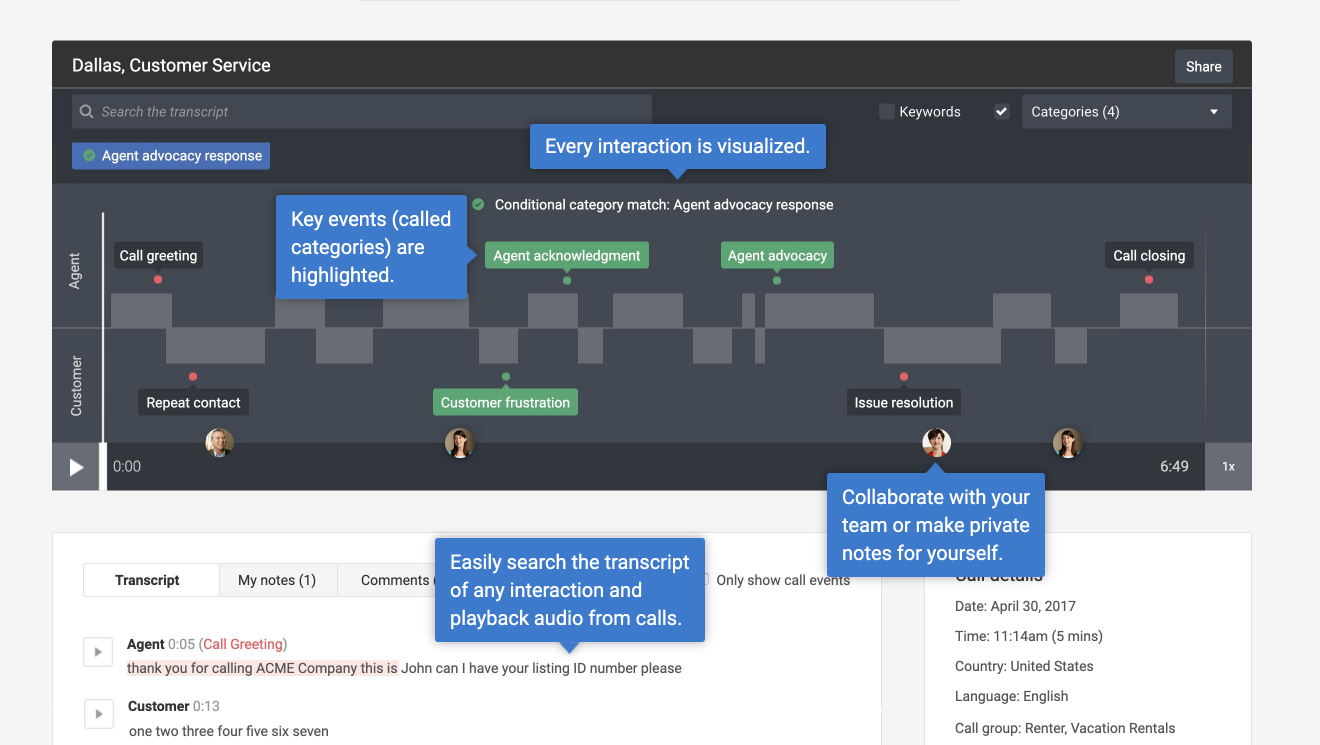
Example report
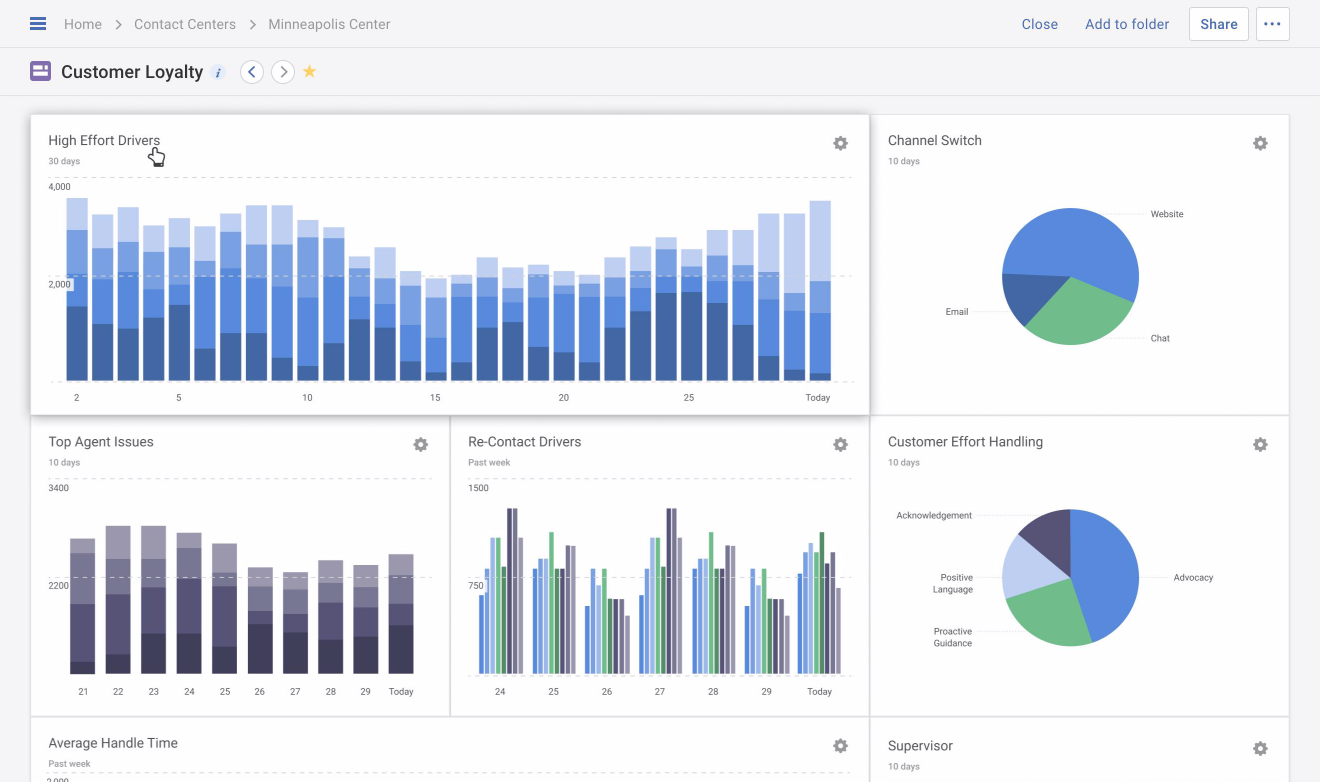
Example dashboard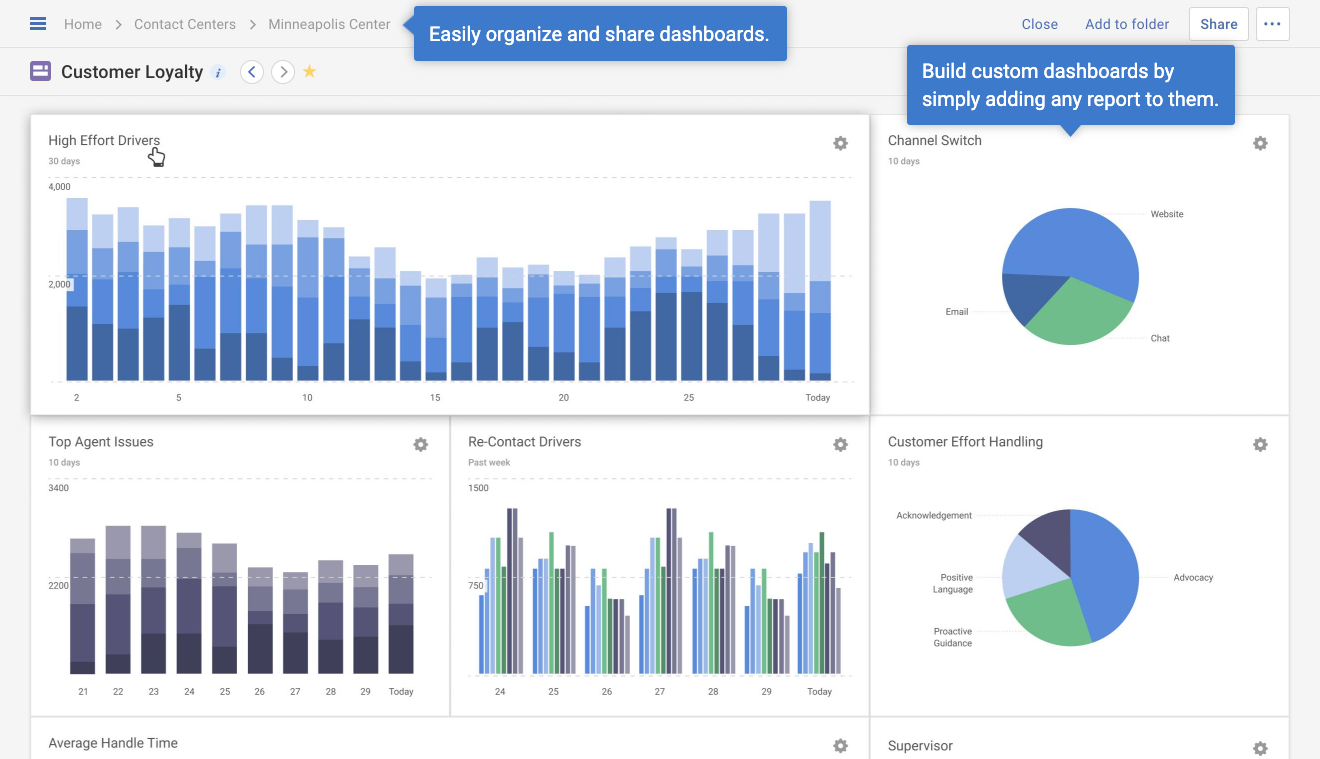
Ready for a deeper dive?
Get started by browsing some of the topics below. We recommend starting with Calls, Search & browse, Reports, and Dashboards.
Need further help? Bookmark this support site or use the search at the top of the page to find topics most relevant to you. If you can't find what you need, submit a request.
Calls
Play back audio, search the transcript, and find details about the call. You may also apply a label, private note or public comment to the call.
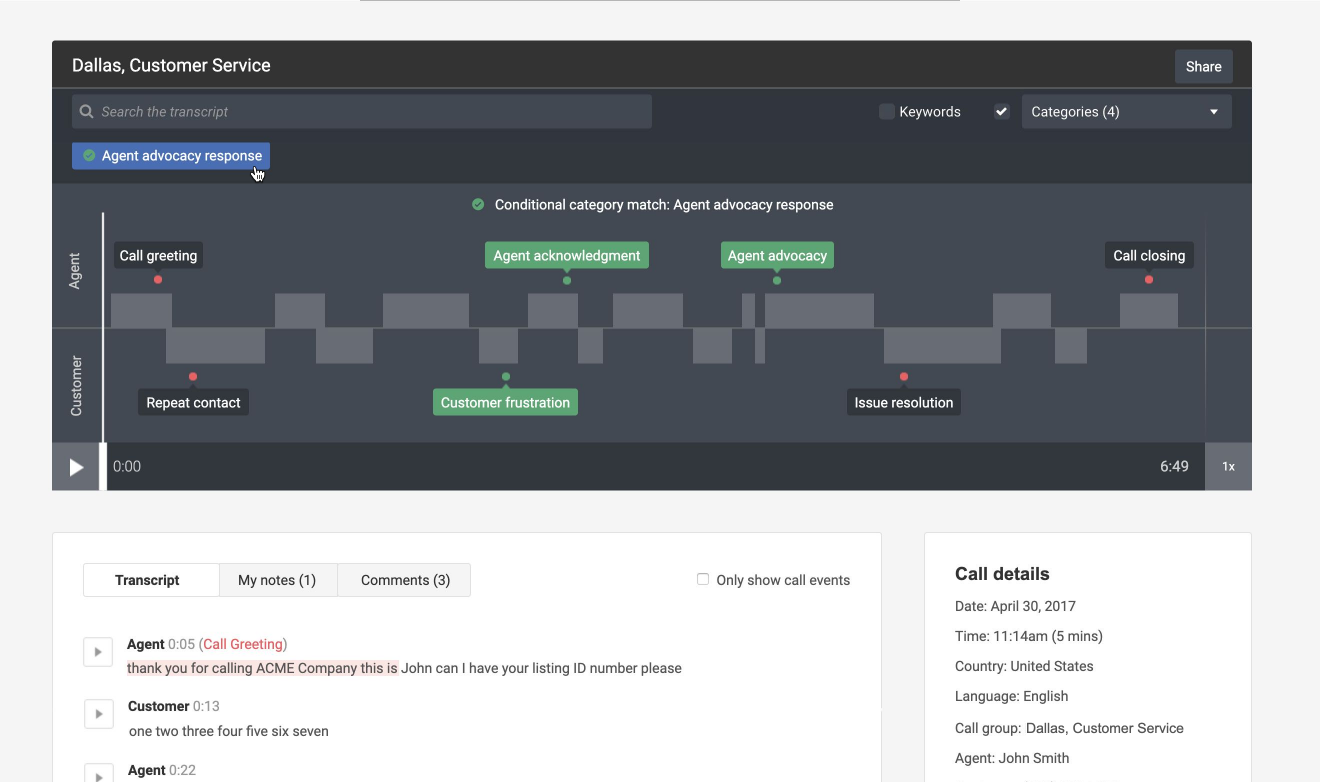
- What are calls?
- Playing a call
- Searching the call transcript
- Adding notes or comments to a call
- Finding my notes and comments
Categories
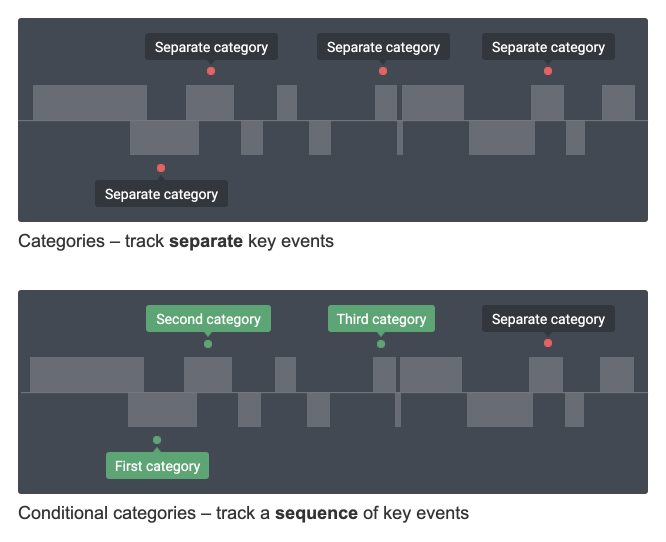
Track whether or not key events were met on a call. You may filter calls by categories to see how many had the key events and look for trends over time.
Search & browse
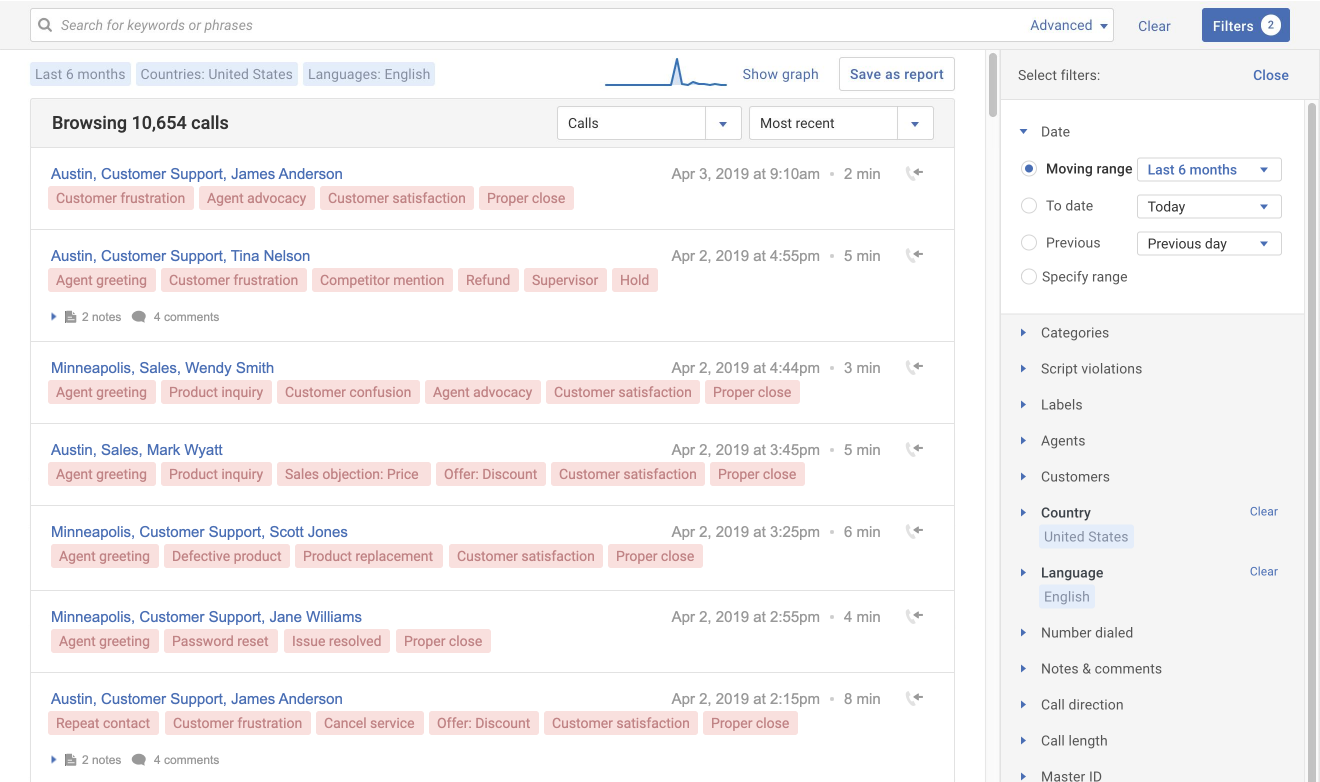
Search through calls using keywords and filter criteria (including teams, date ranges, agents, etc.). Then save your searches as reports and place them on a dashboard for easy access.
- What is search & browse?
- What are the call results?
- Searching the call results
- Filtering the call results
- Saving a new report
Reports
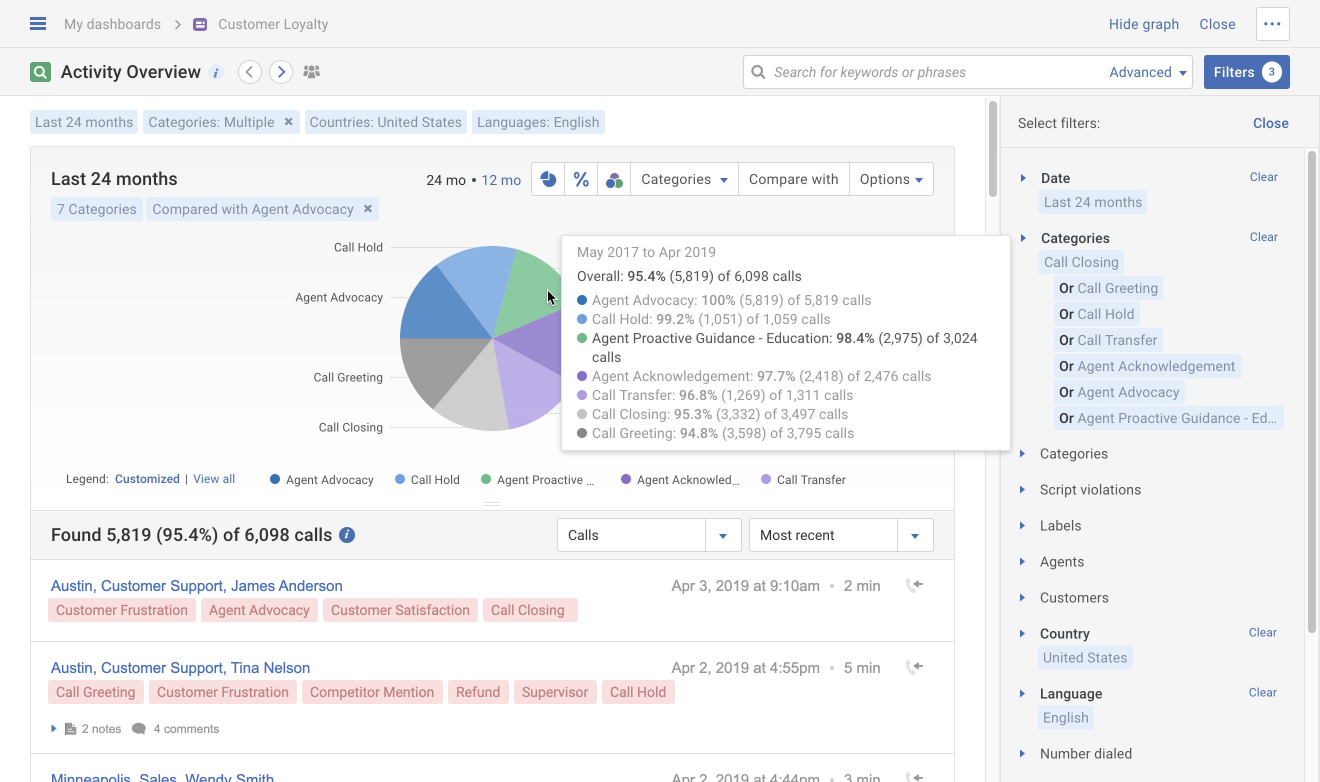
Save your Search & browse results into an individual report for easy reference. Then share your report with other Creovai users for collaboration and visibility to call activity over time.
- What are reports?
- Saving a new report
- Sharing a report with others
- Adding a report to a folder
- Managing your reports list
Graphs
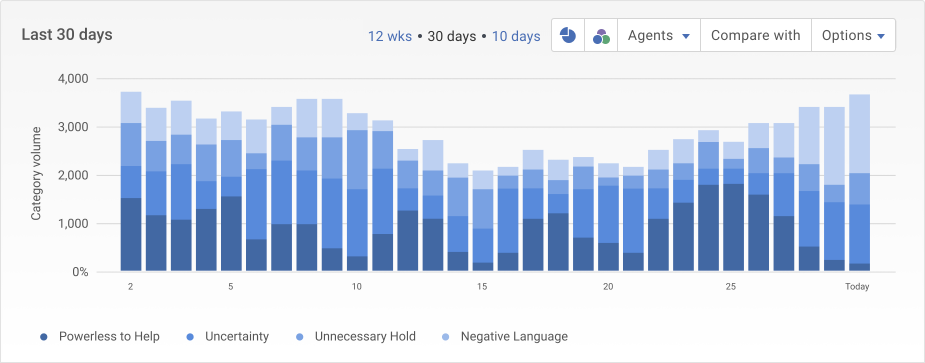
Customize the visual representation of the report's aggregate data by changing the graph's display, timeframe and data. You can also download a file with the data shown in the graph.
- Graphing basics
- Changing the graph
- Showing the graph average
- Comparing the graph data
- Downloading a CSV file
Dashboards
Organize your reports on dashboards for quick access to saved Search & browse results. You may share your dashboards with other Creovai users for collaboration.
Folders
Organize your dashboards and reports into folders that can be shared across your organization. You may add filters to your folders to personalize the view of folder contents (for example, by department or supervisor).
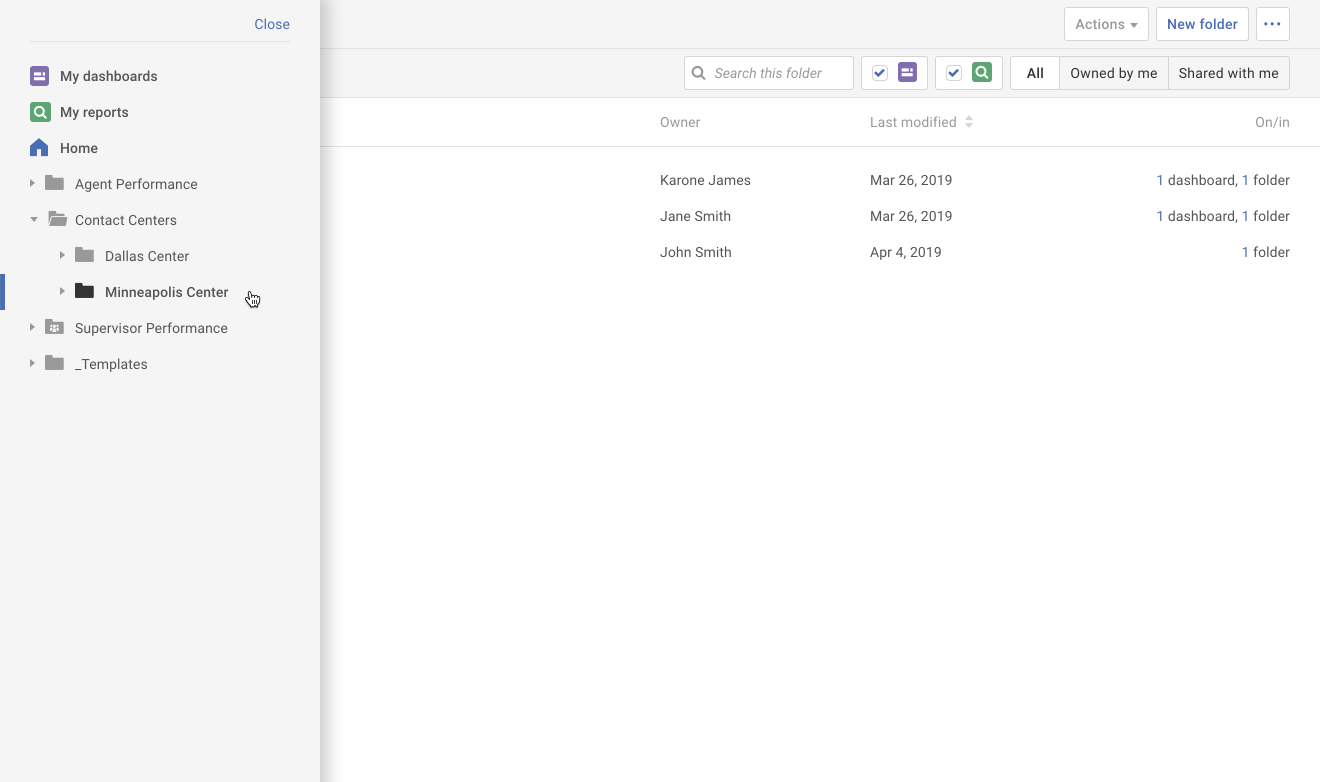
- What are folders?
- Creating a new folder
- Adding a report to a folder
- Adding a dashboard to a folder
- Sharing a folder
Settings
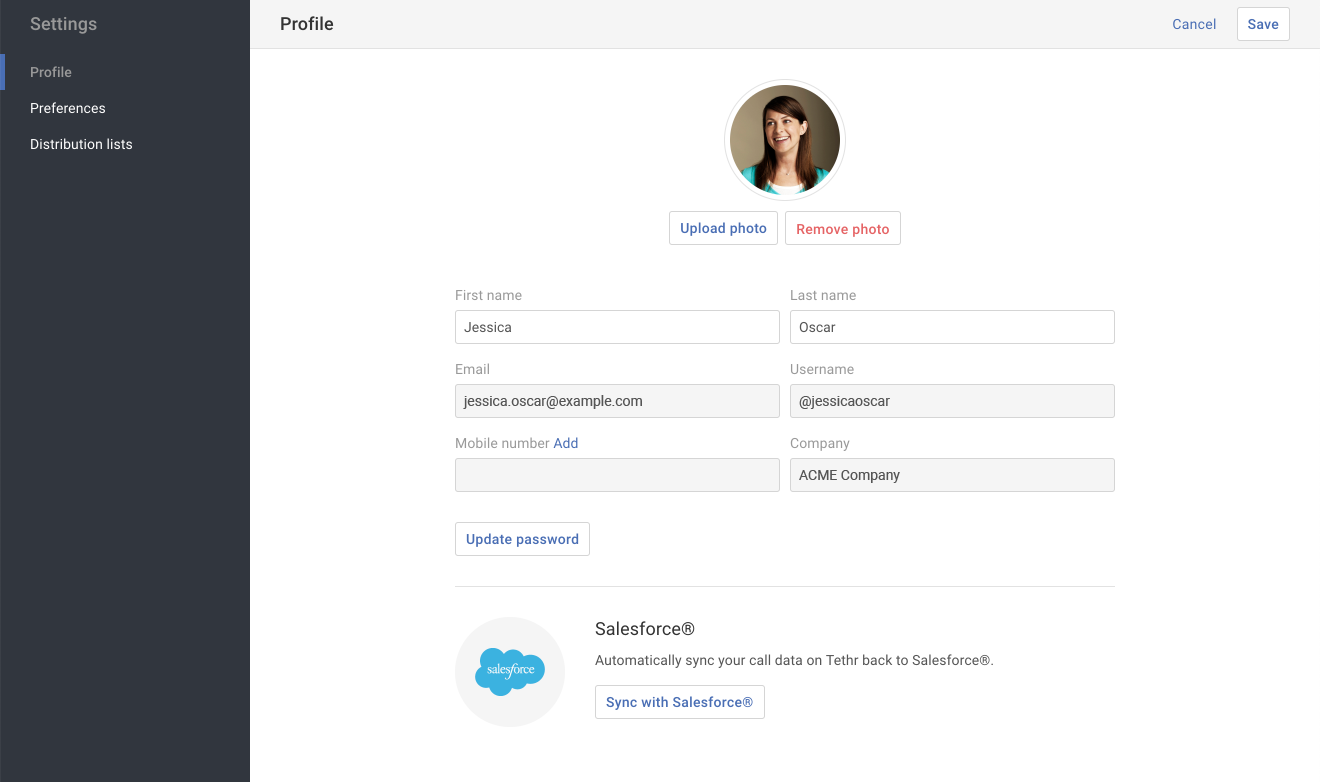
Manage your user profile, preferences, and password. You may also add a photo and your mobile number to your profile.
- Updating your user password
- Updating your preferences
- Updating your user profile
- Uploading your user photo
Additional topics
| Admins | Find resources for managing your agents and users in the Creovai app. Note: This section may require a sign in. |
| Developers | Find API and technical documentation for getting certain types of data in and out of Creovai. |
| Glossary | Find definitions to common Creovai terms. |
| Integrations | Sync your personal apps with Creovai. |
| Labels | Use custom labels to organize calls or as a filter when building your reports (like a label called "training examples"). |
| My notes & comments | Use private notes to capture a thought about the call only you can see, or public comments to collaborate with other Creovai users. Adding notes & comments to a call | Finding my notes & comments |
| Notifications | Set up an optional notification to receive automatic alerts whenever your report is updated with new calls that meet your report criteria. |