Adding a label to an interaction
Add a label to an interaction.
Getting started: If you’re not already viewing an interaction, first click on the interaction in Search & browse or one of your Reports.
Add a label to an interaction:
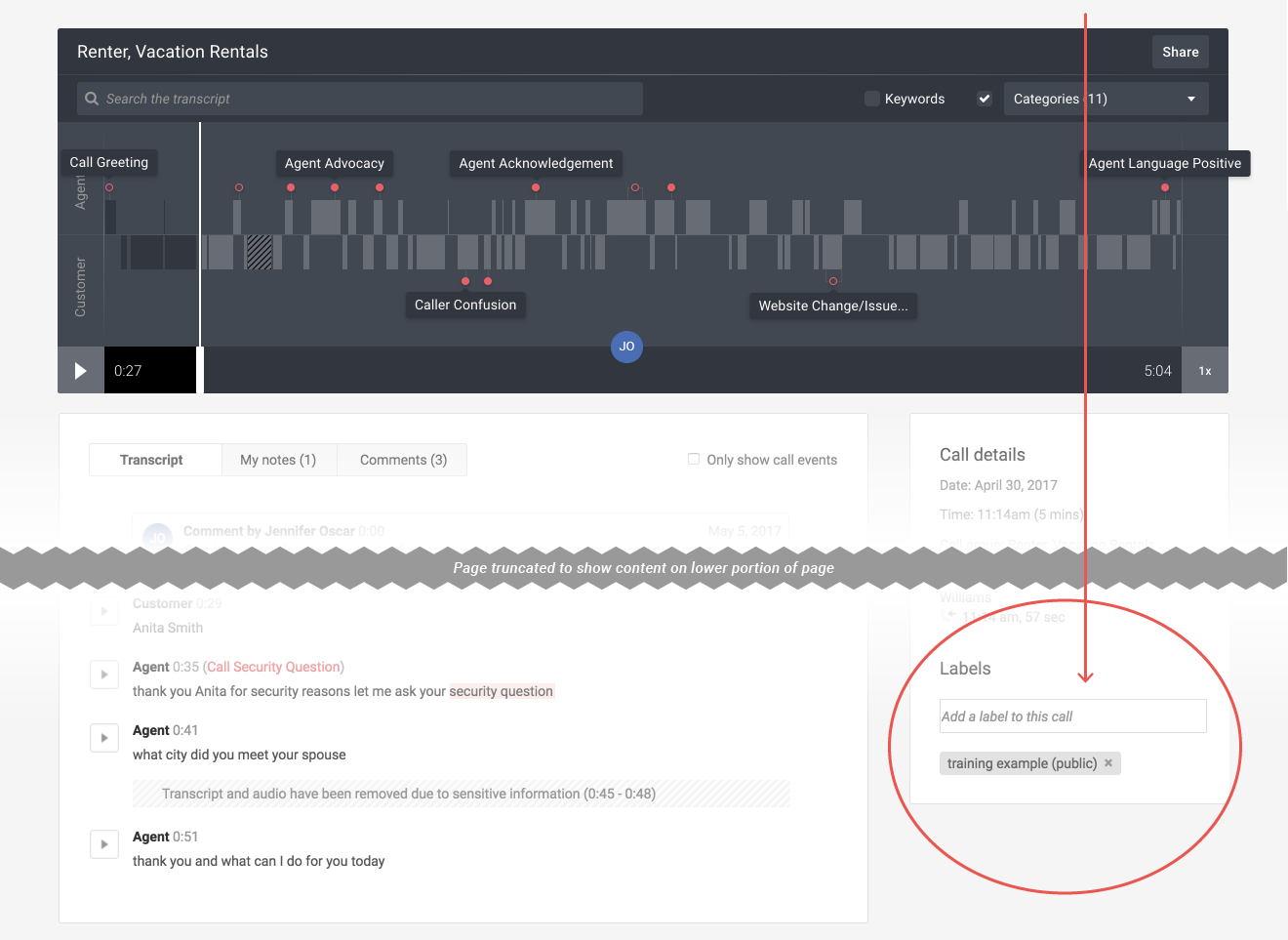
- While viewing an interaction, scroll down the page to the Labels area. Click in the Add a label to this interaction box.
- In the pop-up, select the label you want.
Tip #1: If the list is too long, you may type part of the label name in the Add a label to this interaction box to filter the list results.
Tip #2: Don't see the label you want? Type a new label name in the Add a label to this interaction box, select if it should be private (only visible by you) or public, then click the Add button.
- The label is now added to the interaction as shown with the gray label box.